Adjust opacity, soften an edge, or fade part of a photo. Download a transparent PNG or WebP that blends into your next design. Your image stays on your device.
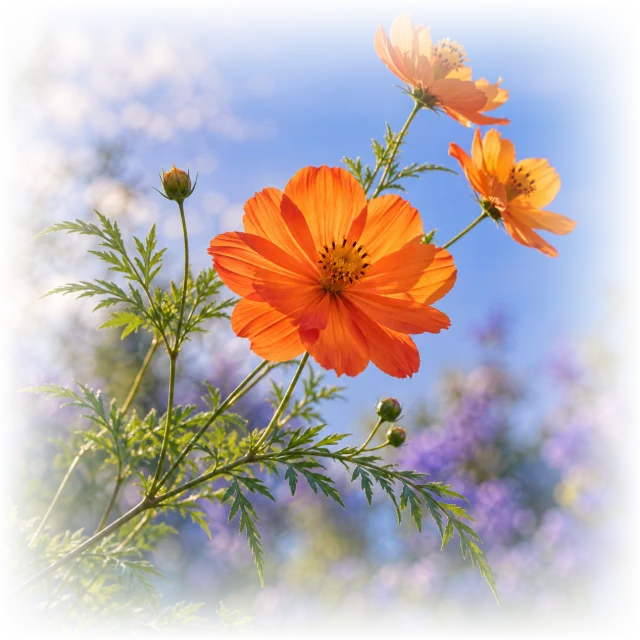
Choose an even fade, a directional transition, or soft edges. These are actual ImageFader exports, not white overlays. The checkerboard shows where a new background will appear.
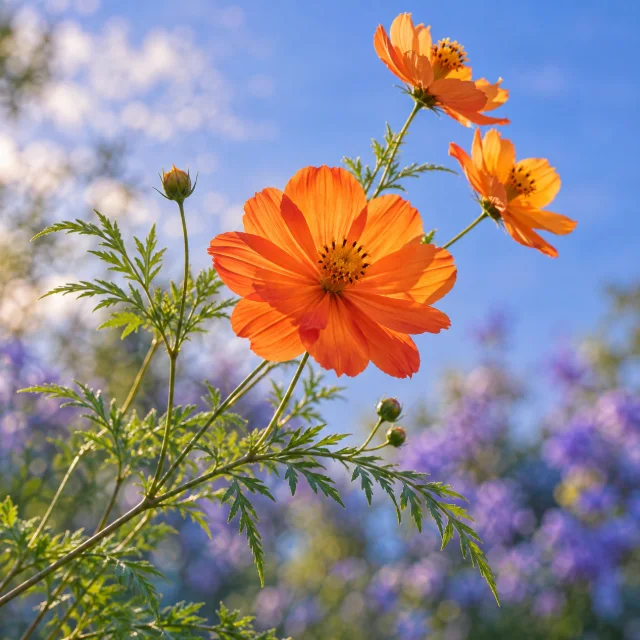
Original100% opacity · no effect
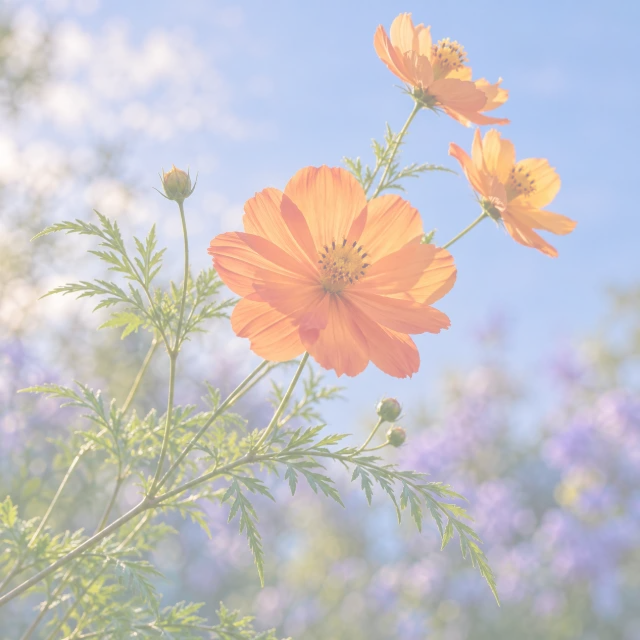
Overall opacity50% · every pixel fades evenly
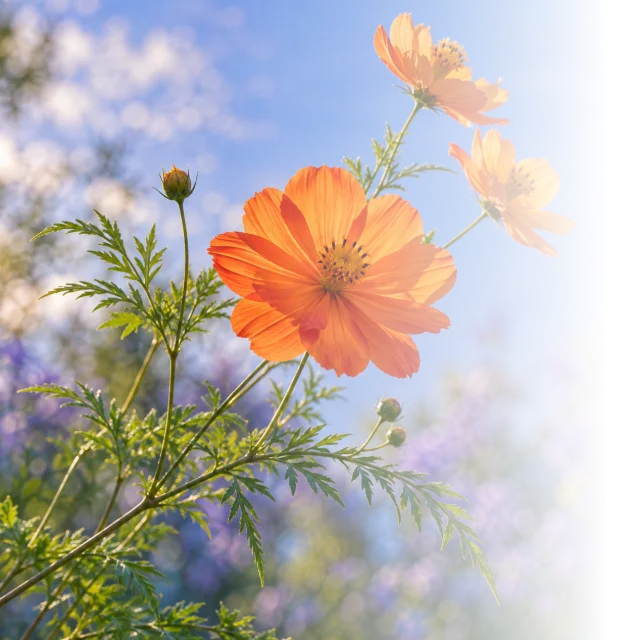
Right-side fadeLinear · 0° · range 35–95% · reversed
AI-generated demonstration image; all transparency effects rendered by ImageFader. Gradient and feather examples use 0% minimum/edge opacity.
THE SAME FILE, ON DARK
Transparency travels with the image.
A white gradient only blends into white. A real Alpha channel makes pixels partly see-through, so the same file works over dark slides, colored panels, or another picture. This is the identical right-fade export shown above, placed on a dark background.
The checkerboard and preview colors are not included in your download. Use PNG or WebP; saving as JPG would flatten the transparency.
BUILT FOR TRANSPARENCY
Less editor. More control where it matters.
This image fader changes transparency, not the colors of a vintage photo filter. It does not create animated fade-ins or automatically remove a subject's background. Pick the effect that matches the part you want to fade.
Flexible gradients
From quick directions to any angle
Use linear fades for one direction, radial fades around a center, or sector fades around an angle or outward from the center. Adjust the range, reverse the effect, or drag the canvas handles.
No. Reading, editing, and exporting happen in your current browser. There is no image upload endpoint and no sign-in.
Why does the tool say opacity instead of transparency?+
Opacity at 100% means fully visible, while 0% means fully transparent. This matches common design tools and CSS.
Should I export PNG or WebP?+
Both preserve transparency. PNG is the safest choice; WebP usually produces a smaller file and offers a quality control.
Will export reduce my image dimensions?+
No. The editor scales the on-screen preview, but exports at the original pixel dimensions.
Can I create local transparency on mobile?+
Yes. The canvas supports touch selections and brush strokes, with a fixed mobile export bar for easier use.
Why does my transparent PNG look white?+
Some viewers show transparent pixels against white. Place the PNG over a dark or colored background to check it. The editor's checkerboard is only a preview and is never added to your file.
Can I fade multiple images at once?+
Yes. Batch processing applies overall opacity, gradient fades, or feathered edges to multiple images. Check individual results, make per-image adjustments, and download them separately or as a ZIP. Local selections remain a single-image tool.
Does fading remove the background?+
No. Lowering opacity fades the image, including its subject. To change only a chosen area, use local selections. This editor does not automatically identify a subject or erase its background.